
Using the AI Systems Registry
Keep provider, purpose, data, oversight, retention, disclosure, marking, and status information in one place.
Product boundary
This guide explains plugin configuration. It does not provide legal advice or certify compliance.
When to use this guide
Use the AI Systems Registry when documenting an AI system used by the site, reviewing an existing system record, changing its status, or preparing it for public disclosure output.
Steps
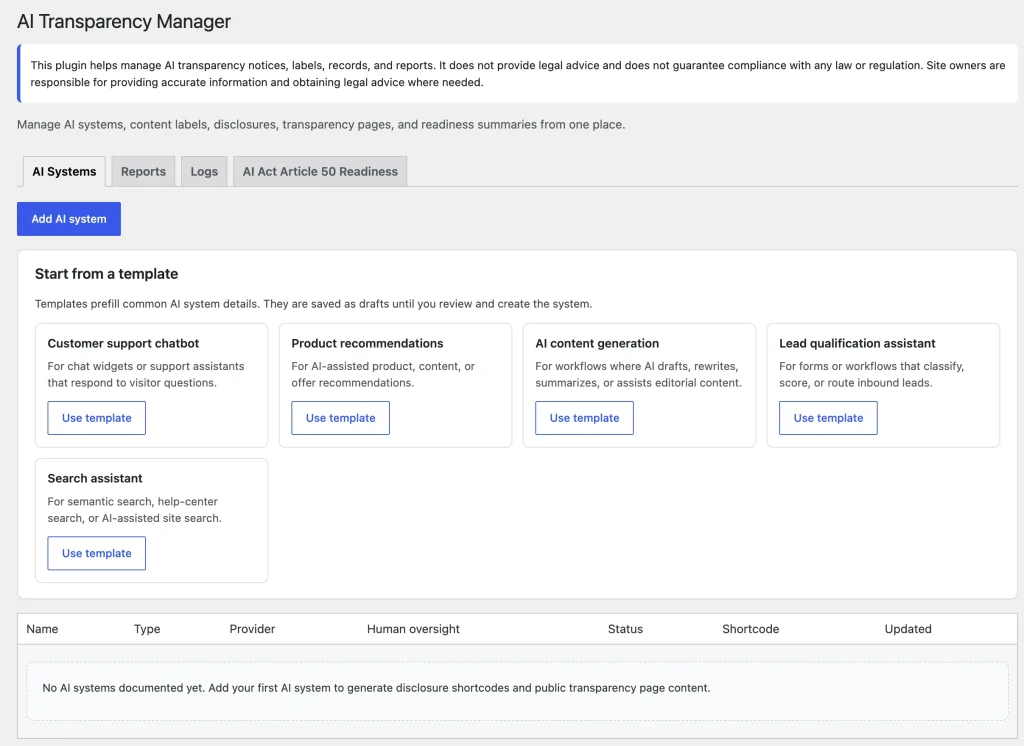
- Open AIVOW → AIVOW Dashboard → AI Systems.
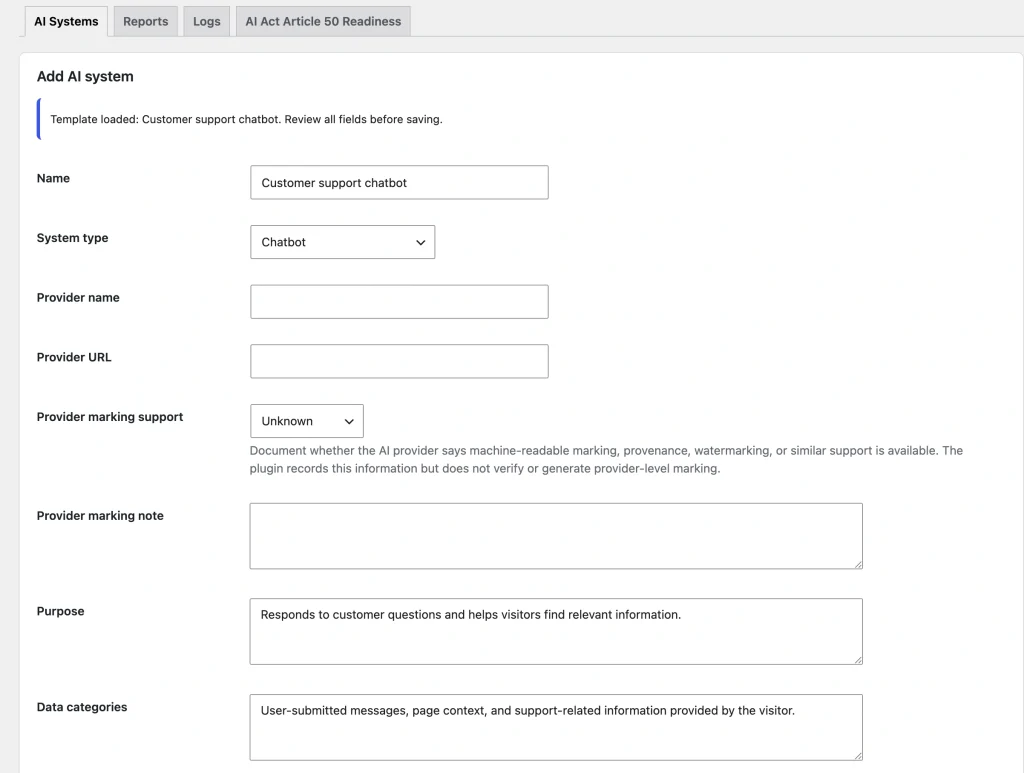
- Choose a built-in template or create a custom AI system record.
- Review and update the system name, provider, purpose, and relevant data categories.
- Document external processing, retention, human oversight, automated decisioning, and training usage where applicable.
- Review the Article 50 internal assessment and provider marking fields.
- Write or review the public disclosure text.
- Configure the acknowledgement requirement and related public wording where relevant.
- Set the system status to Active, Draft, or Inactive.
- Save the AI system record.
- Return to the AI Systems list and confirm that the system is Active and available for public output.
- For an Active system, click its shortcode chip to copy the disclosure shortcode.
Only Active systems are available to public output. Draft and Inactive systems remain stored in the WordPress admin and are not displayed through system-dependent frontend outputs.
The registry list provides a disclosure shortcode for Active systems. Interaction gate shortcodes use the same numeric system ID but must be added manually as a paired shortcode.

Expected result
The AI system is stored as a structured administrator record with its status, disclosure information, and workflow details. If the system is Active, its numeric ID can be used by the disclosure and interaction gate shortcodes. Draft and Inactive systems remain available in the WordPress admin but are not displayed through those public outputs.
Common mistakes
- Publishing template or default disclosure wording without reviewing it for the actual AI system.
- Leaving a system in Draft or Inactive status and expecting public output.
- Assuming that setting a system to Active automatically inserts a disclosure on the frontend. Public output still needs to be configured or added where applicable.
- Adding unnecessary personal, confidential, prompt, or customer information to internal fields.
- Treating provider marking information as proof that the site’s own content is technically marked.
- Assuming that the registry automatically detects AI systems used by the site.
- Copying a shortcode for one system and later expecting it to reference a different system.
- Deleting or deactivating a system that is still referenced by a published shortcode.
- Treating internal Article 50 assessment fields as legal certification.
Troubleshooting
- Confirm that AIVOW Lite is active.
- Reopen the AI system and confirm that the record was saved successfully.
- Confirm that the system status is Active when public output is expected.
- Return to the AI Systems list and confirm that the system is Active and that its disclosure shortcode chip is available.
- If multiple systems are Active, review their deterministic order wherever a public output lists more than one system.
- Confirm that the shortcode contains the correct numeric system ID.
- For disclosure output, use
[aivow_disclosure id="123"]in a WordPress Shortcode block. - For an interaction gate, use the complete paired shortcode:
[aivow_interaction_gate id="123"]...[/aivow_interaction_gate]. - Confirm that the referenced system has not been deleted, changed to Draft, or changed to Inactive.
- Update the public page after adding or changing a shortcode.
- Clear active page, object, CDN, optimization, and browser caches if older disclosure information remains visible.
- If a system record does not save, review the WordPress debug log and test whether a security or optimization plugin is blocking the request.