
Using the Interaction Gate Shortcode
Show an AI-related acknowledgement notice before revealing selected content in the browser, without storing visitor identity in AIVOW Lite.
Product boundary
This guide explains plugin configuration. It does not provide legal advice or certify compliance.
When to use this guide
Use this guide when an AI-powered interaction or selected content should be visually withheld until the visitor acknowledges an AI-related notice. Common examples include an AI chatbot, AI-powered search, recommendation feature, or another contextual AI interaction. Do not use the Interaction Gate to protect confidential, personal, paid, or otherwise sensitive content.
Add an interaction gate
- Open AIVOW → AIVOW Dashboard → AI Systems.
- Find the AI system associated with the gated interaction.
- Confirm that the system has Active status.
- Note the numeric system ID used in its disclosure shortcode.
- Open the page, post, product, or other content item containing the interaction.
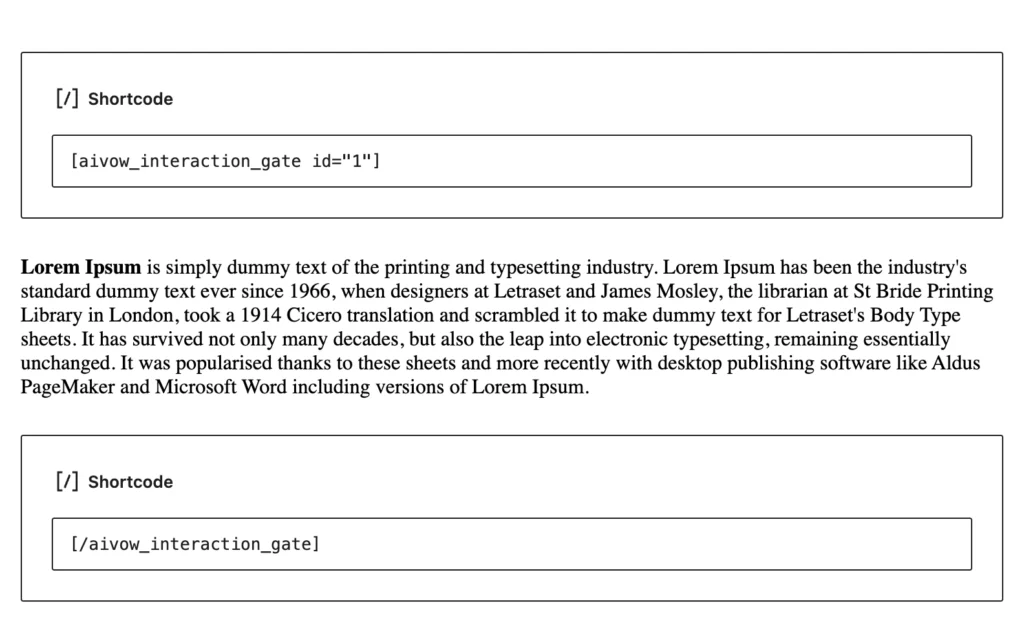
- Add a WordPress Shortcode block.
- Add the opening and closing interaction gate shortcode.
- Place the content that should be revealed after acknowledgement between the shortcode tags.
- Preview the page and confirm that the notice appears before the gated content.
- Acknowledge the notice and confirm that the wrapped content becomes visible.
- Publish or update the content.
[aivow_interaction_gate id="123"]
Gated content here.
[/aivow_interaction_gate]
Replace 123 with the numeric ID of the relevant Active AI system. AIVOW Lite does not impose a quantity limit on Active systems or public outputs.
Use a WordPress Shortcode block on the target page to execute the shortcode. A Code block displays the example as text and does not execute it.
Add context-specific notice text
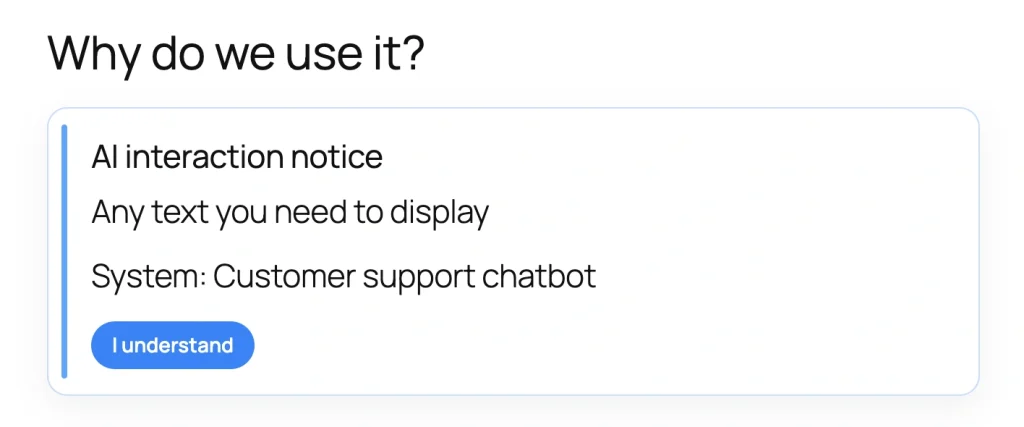
Use the optional inner_text attribute when the default system notice does not provide enough context for this specific interaction.
[aivow_interaction_gate id="123" inner_text="Custom notice text for this context"]
Gated content here.
[/aivow_interaction_gate]
Keep the custom notice concise, accurate, and specific to the gated interaction. Straight quotation marks must be used around the attribute value.
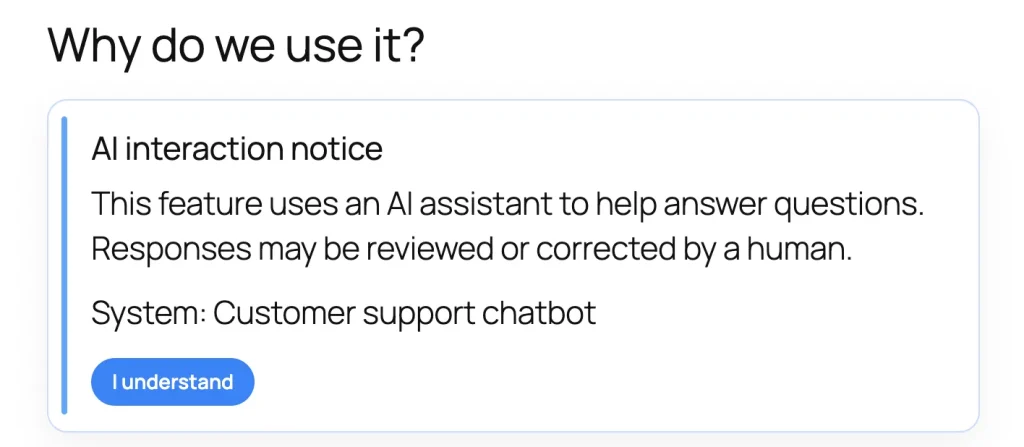
When no context-specific inner_text is supplied, AIVOW Lite uses the notice configured for the selected system or its safe fallback notice: “This feature uses an AI-powered system. AI outputs may be inaccurate or incomplete. Do not submit sensitive personal information unless you understand how this system is used.”
Understand acknowledgement behavior
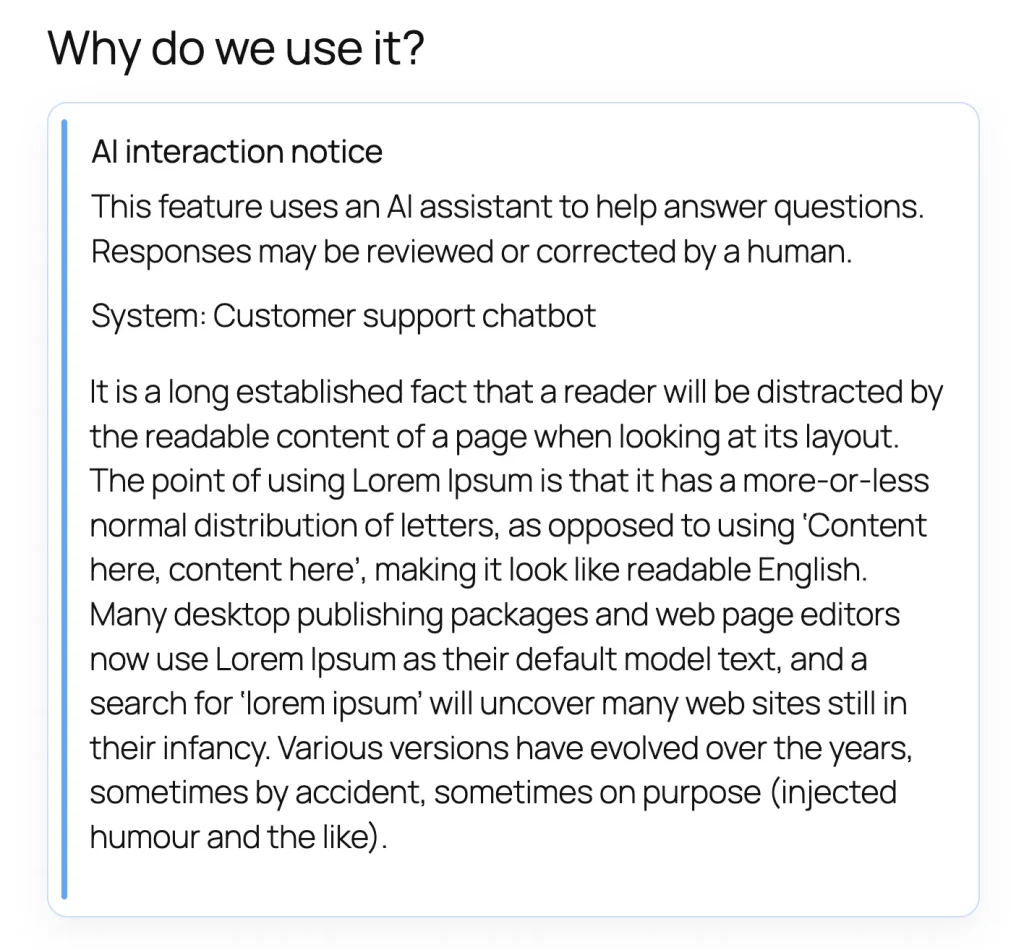
The wrapped content is visually concealed until the visitor acknowledges the notice. The content may already be present in the delivered page HTML before acknowledgement.
AIVOW Lite stores a non-personal acknowledgement value in that browser’s localStorage. It does not send the acknowledgement to the WordPress database and does not store the visitor’s name, email address, IP address, or other identity information.
Multiple interaction gates can operate independently on the same page.
AIVOW Lite does not record interaction gate views or acknowledgements in disclosure logs.
Acknowledgement boundary
The Interaction Gate is a disclosure and acknowledgement interface. It is not authentication, authorization, access control, a paywall, a consent-management platform, or secure protection for sensitive content.
Gated content may already be present in the page HTML and is revealed in the browser after acknowledgement. Do not place passwords, personal data, confidential information, paid content, private files, API keys, or anything requiring real access control inside the gate.
The gate does not guarantee that embedded scripts, external requests, third-party widgets, or nested shortcodes wait for acknowledgement before running. Test the actual integration and do not rely on the gate to prevent data processing.
A local browser acknowledgement does not establish that legally valid consent has been obtained and does not prove compliance.
The gate affects only content placed between its opening and closing shortcode tags. It does not automatically detect or block AI features elsewhere on the site.
The following screenshots show the system record, the default interaction gate, its closed and acknowledged states, and an example with custom notice text.

Expected result
The Interaction Gate initially presents an AI-related notice and visually conceals the wrapped content. After acknowledgement, JavaScript reveals the content and a non-personal acknowledgement value persists in that browser’s localStorage. The content may already be present in the page HTML, and the gate must not be treated as secure access control. AIVOW Lite does not store visitor identity or create Interaction Gate logs.
Common mistakes
- Using a Draft, Inactive, deleted, or unknown AI system.
- Using the Interaction Gate to protect sensitive, confidential, private, or paid content.
- Assuming that embedded scripts or third-party integrations cannot initialize before acknowledgement.
- Entering the wrong numeric system ID.
- Omitting the closing
[/aivow_interaction_gate]tag. - Placing the content outside the opening and closing shortcode tags.
- Pasting the shortcode into a Code block instead of a Shortcode block on the target page.
- Using typographic quotation marks around the
idorinner_textvalue. - Adding unclear or misleading custom notice text.
- Treating acknowledgement as proof of legally valid consent.
- Assuming the gate automatically blocks AI features that are not wrapped by the shortcode.
- Expecting AIVOW Lite to record the visitor’s identity or gate acknowledgement history.
Troubleshooting
- Confirm that the opening and closing shortcode tags are both present.
- Confirm that the shortcode uses the exact format shown in this guide.
- Confirm that the system ID belongs to the intended AI system.
- Confirm that the system has Active status.
- Confirm that the shortcode is placed inside a WordPress Shortcode block.
- Preview the frontend page rather than relying only on the editor display.
- To test the initial closed state again, clear the site’s local storage in the browser or use a private browsing session.
- If the notice appears but the button does not reveal the wrapped content, temporarily disable JavaScript delay, combination, or rewriting in optimization plugins.
- Check whether a security policy or another plugin is preventing the plugin’s frontend JavaScript from running.
- Clear any active page, CDN, or optimization caches if the frontend shows an older shortcode configuration.
- Test one simple interaction gate on a new page before troubleshooting multiple gates or complex embedded content.