
Configuring the Global AI Banner
Show a site-wide informational notice or ask visitors to acknowledge it, then customize its text, placement, colors, width, opacity, and shadow.
Product boundary
This guide explains plugin configuration. It does not provide legal advice or certify compliance.
When to use this guide
Use this guide when you need to show a general site-wide notice that AI-assisted content or AI-powered features may be present. For information about a specific Active AI system, use the Disclosure Shortcode. To request acknowledgement before revealing selected content, use the Interaction Gate.
Steps
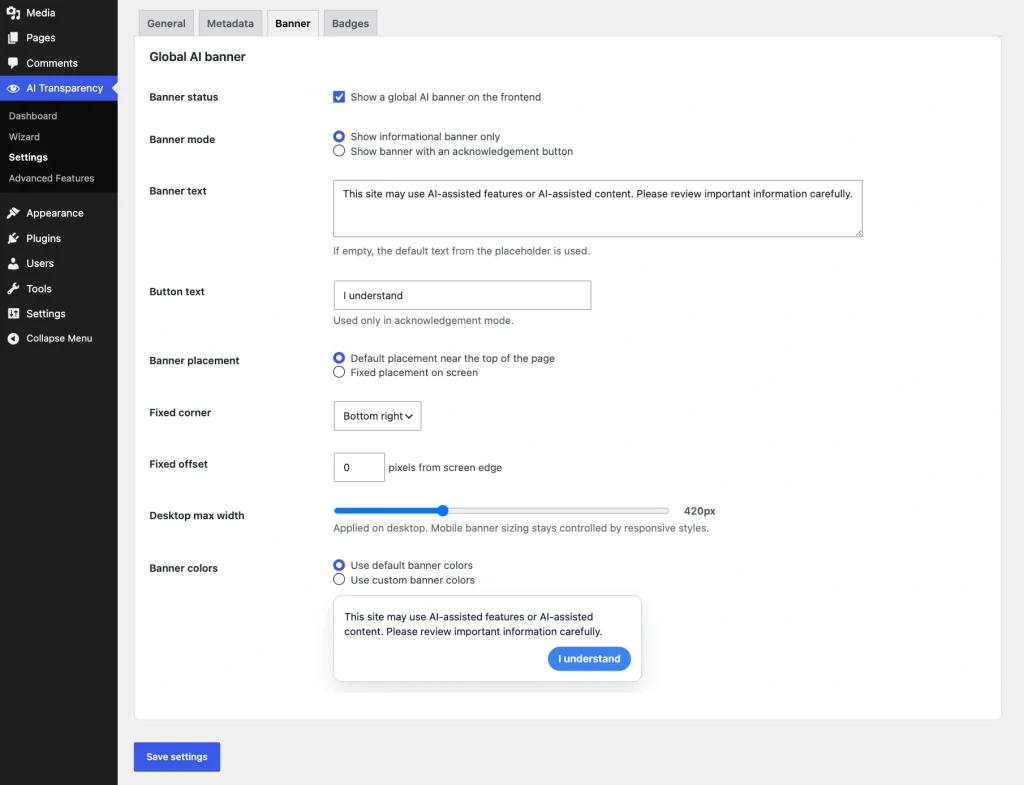
- Open AIVOW → AIVOW Settings → Banner.
- Enable the global AI banner.
- Choose Informational or Acknowledgement mode.
- Review or replace the banner text.
- In Acknowledgement mode, review or replace the button text.
- Choose the default compact placement or fixed screen placement.
- For fixed placement, select the corner and adjust the offset.
- Adjust the desktop maximum width.
- Choose the default colors or configure custom background, border, text, button background, and button text colors.
- Adjust color opacity where needed.
- Enable or disable the banner shadow.
- Review the live preview.
- Save the settings and test the banner on desktop and mobile.
If the banner text is left empty, AIVOW Lite uses a safe default notice. The frontend also includes a white background fallback to keep the banner readable if custom styling does not load as expected.
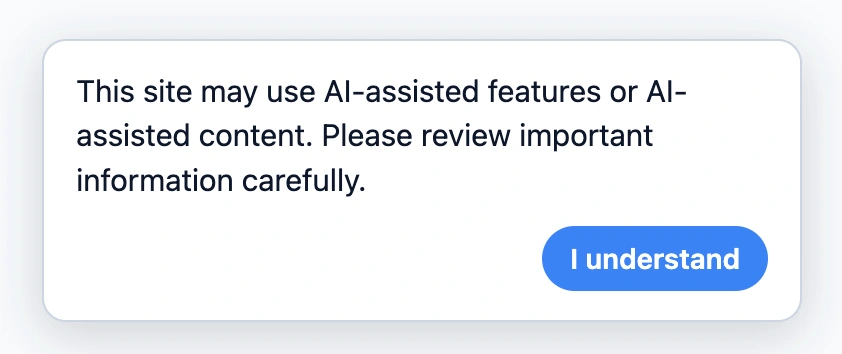
The default notice is: “This site may use AI-assisted features or AI-assisted content. Please review important information carefully.”
The default acknowledgement button text is: “I understand”
Choose the appropriate banner mode
Informational mode displays the banner as a site-wide notice without requiring the visitor to take an action.
Acknowledgement mode displays a button and stores a notice fingerprint in a browser cookie after the visitor acknowledges the notice. The fingerprint is not designed to identify the visitor. After acknowledgement, the banner remains hidden until the cookie expires, is cleared, or the fingerprint changes. The cookie has a maximum lifetime of one year.
The Global AI Banner is not an Interaction Gate. Acknowledgement mode does not authenticate the visitor or securely restrict access to page content.
Changing relevant banner text or configuration can generate a new fingerprint and cause the banner to appear again.
The acknowledgement button records that the current notice was acknowledged in the visitor’s browser. AIVOW Lite is not a cookie consent platform or general consent management platform.
The cookie contains a non-personal notice version fingerprint. It does not contain the banner text, a visitor name, email address, IP address, AI prompt, or AI response.
AIVOW Lite does not write the banner acknowledgement to the WordPress database or the Logs tab.
Check the banner on smaller screens
On narrower screens, the banner keeps its compact layout while enough space is available. When the compact layout no longer fits, it moves to a full-width position at the bottom of the screen.
Test the banner with your theme, cookie notice, chat widget, accessibility controls, and other fixed frontend elements to make sure they do not overlap.
The following screenshots show the banner settings and the resulting frontend notice.
Expected result
The global AI banner appears across the frontend in the selected mode and position. Informational mode displays the notice without requiring an action. In Acknowledgement mode, the banner remains hidden after acknowledgement until the cookie expires, is cleared, or its notice fingerprint changes.
Common mistakes
- Enabling the banner without reviewing the default notice text.
- Using Acknowledgement mode but leaving unclear or misleading button text.
- Treating acknowledgement as proof of legal consent or compliance.
- Using fixed placement without checking for overlap with navigation, cookie notices, chat widgets, or accessibility controls.
- Selecting custom colors with insufficient text or button contrast.
- Making the banner too wide for the site layout.
- Changing banner text and assuming previously acknowledged visitors will never see it again.
- Expecting the banner to appear again in a browser where the current notice has already been acknowledged.
- Testing only on desktop.
- Using the Global AI Banner when a system-specific Disclosure Shortcode or content-specific Interaction Gate is more appropriate.
Troubleshooting
- Confirm that the global banner is enabled under AIVOW → AIVOW Settings → Banner.
- Save the settings after changing the banner mode, text, placement, or colors.
- Test the frontend in a private browsing window to avoid an existing acknowledgement cookie.
- If testing Acknowledgement mode repeatedly, remove the banner acknowledgement cookie or change relevant banner content so that its fingerprint changes.
- Confirm that custom text and button colors have enough contrast against the selected background.
- If the banner is present but not visible, temporarily switch to the default colors and compact placement.
- Check whether the theme or another plugin is covering the banner with a higher stacking order.
- Test without aggressive JavaScript delay, combination, or rewriting if the acknowledgement button does not respond.
- Clear any active page, CDN, or optimization caches if the frontend still shows older banner settings.
- Test the banner at desktop, tablet, and mobile widths.
- In Acknowledgement mode, test the button using both a pointer and a keyboard.