
Getting Started with AIVOW Lite
Install AIVOW Lite, document your first AI system, configure a public disclosure method, create the transparency page, and review readiness items.
Product boundary
This guide explains plugin configuration. It does not provide legal advice or certify compliance.
When to use this guide
Use this AIVOW Lite setup guide after installing the plugin for the first time. It walks through the minimum recommended setup: the Wizard, your first AI system, a public disclosure method, the transparency page, and the readiness matrix.
Steps
- Open Plugins → Add New Plugin in WordPress Admin. Search for “AIVOW – AI Disclosure Manager”, confirm that the plugin is by Tuhai Chelyk, click Install Now, and then click Activate.
- Open AIVOW → AIVOW Wizard, answer each readiness question with Yes, No, Not sure, or Not applicable, and save the answers.
- Open the AI Systems Registry and create the first AI system from a built-in template or as a custom record.
- Review the system details and public disclosure fields, set the system status to Active, and save the record.
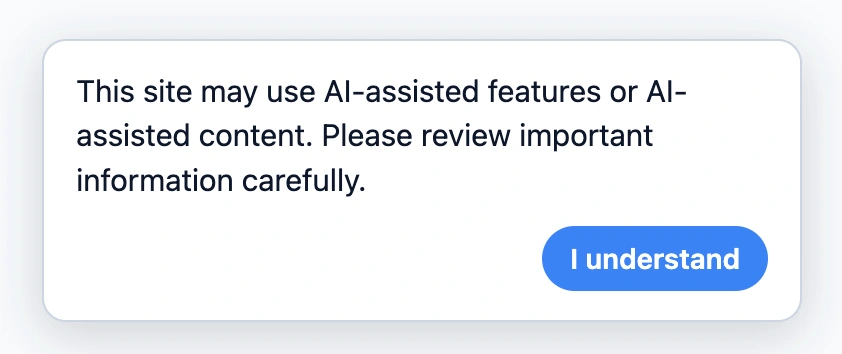
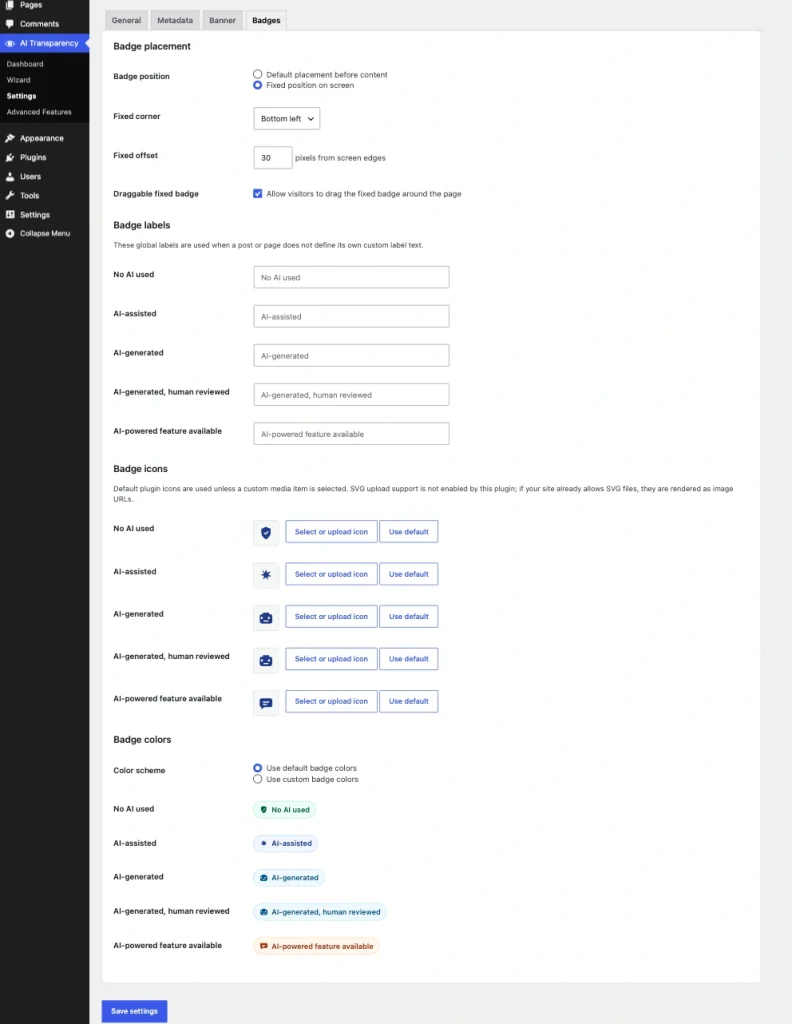
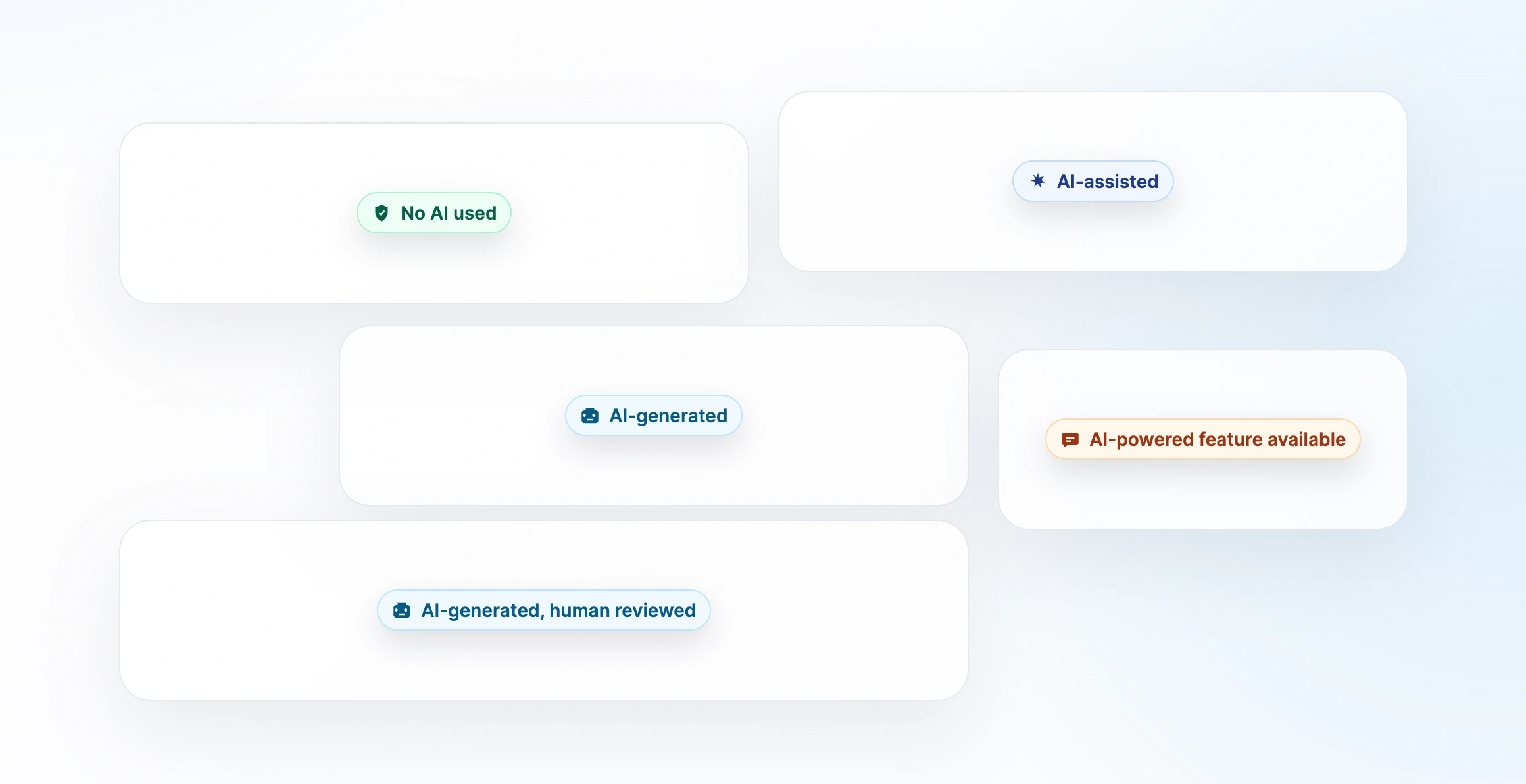
- Choose one suitable public disclosure method: a content badge, global banner, disclosure shortcode, or interaction gate.
- Configure the selected method and test its output on the public frontend.
- Create the draft transparency page, review its frontend output, and publish it when ready.
- Open the Article 50 Readiness matrix and review rows marked Partial, Not assessed, or Manual review required.
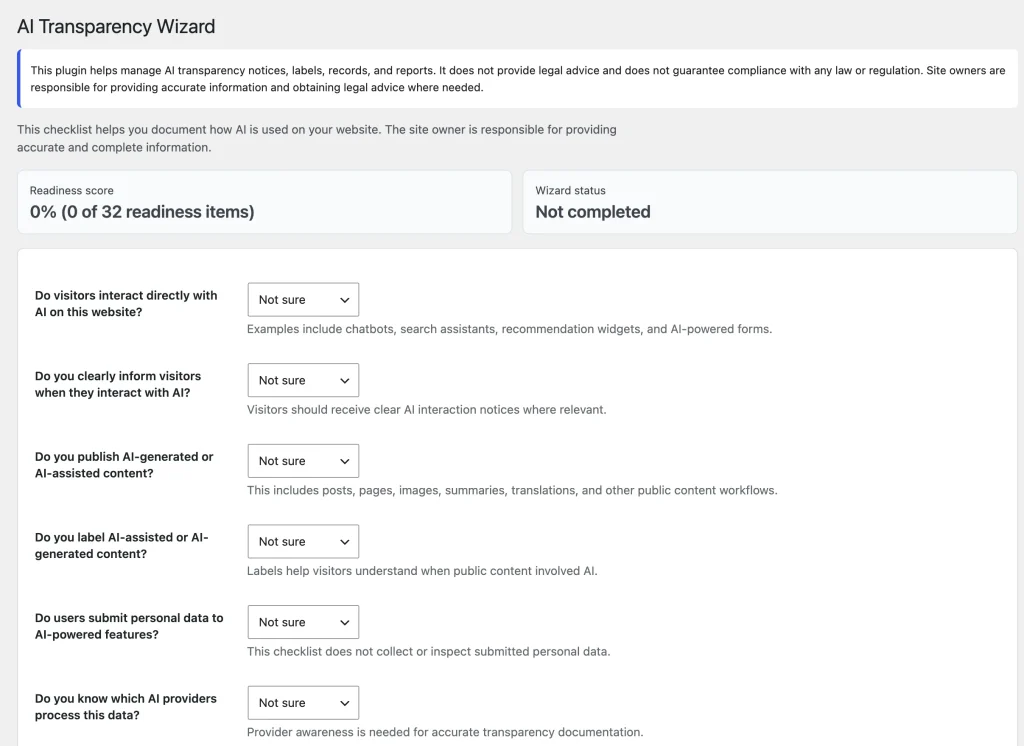
Wizard with readiness questions and response options
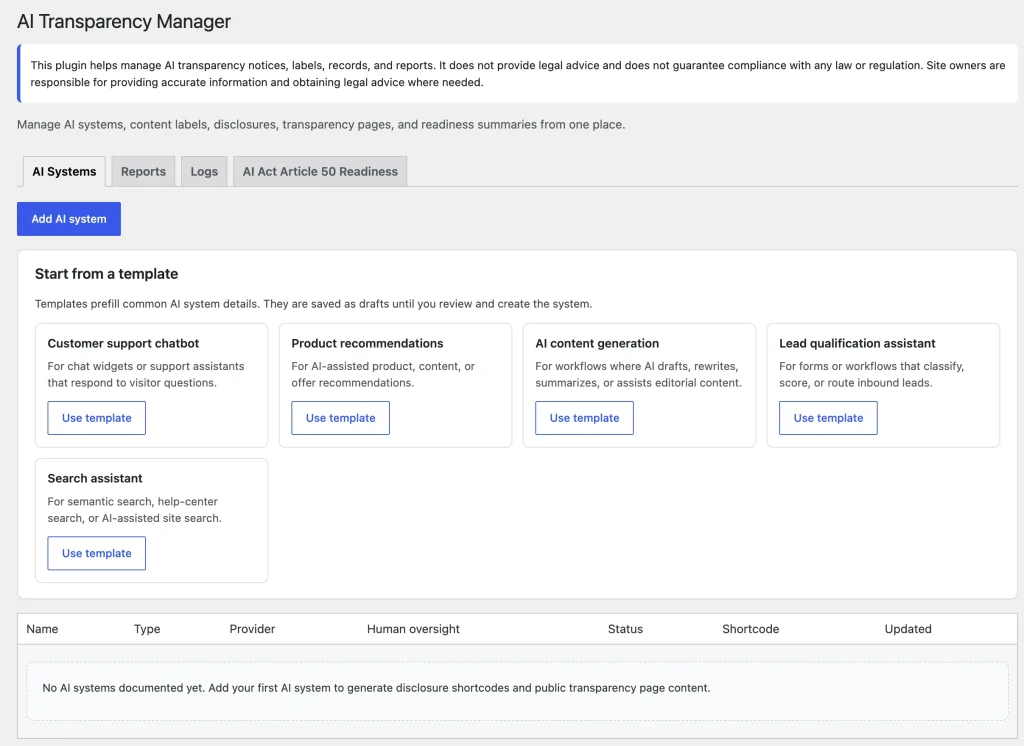
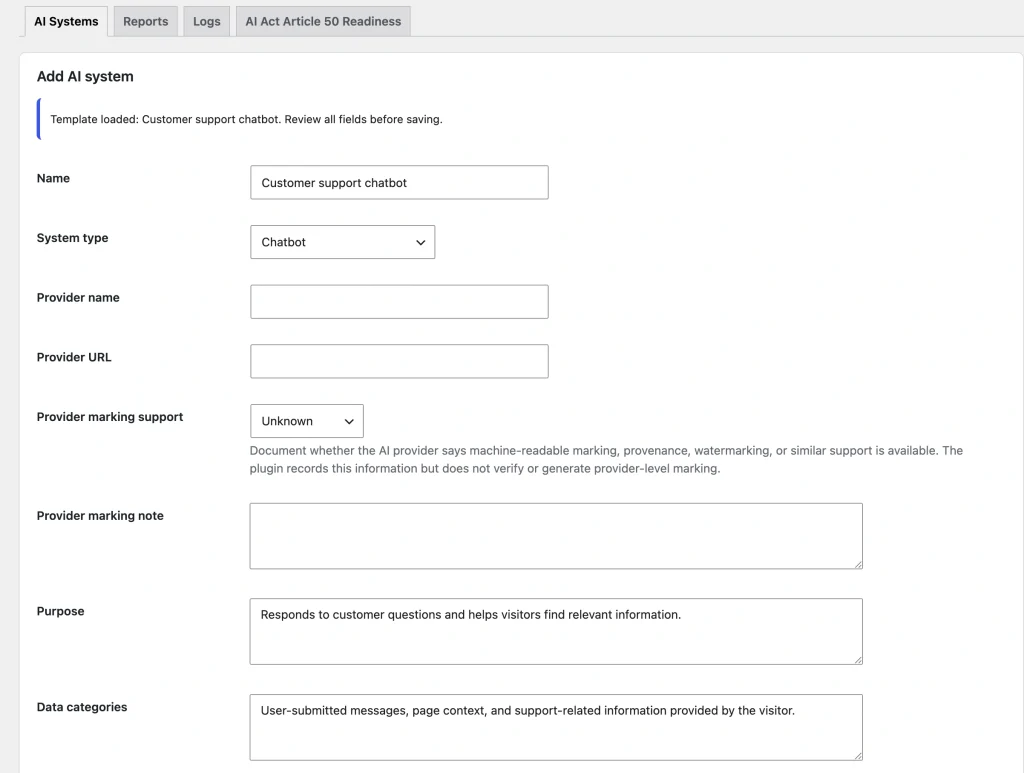
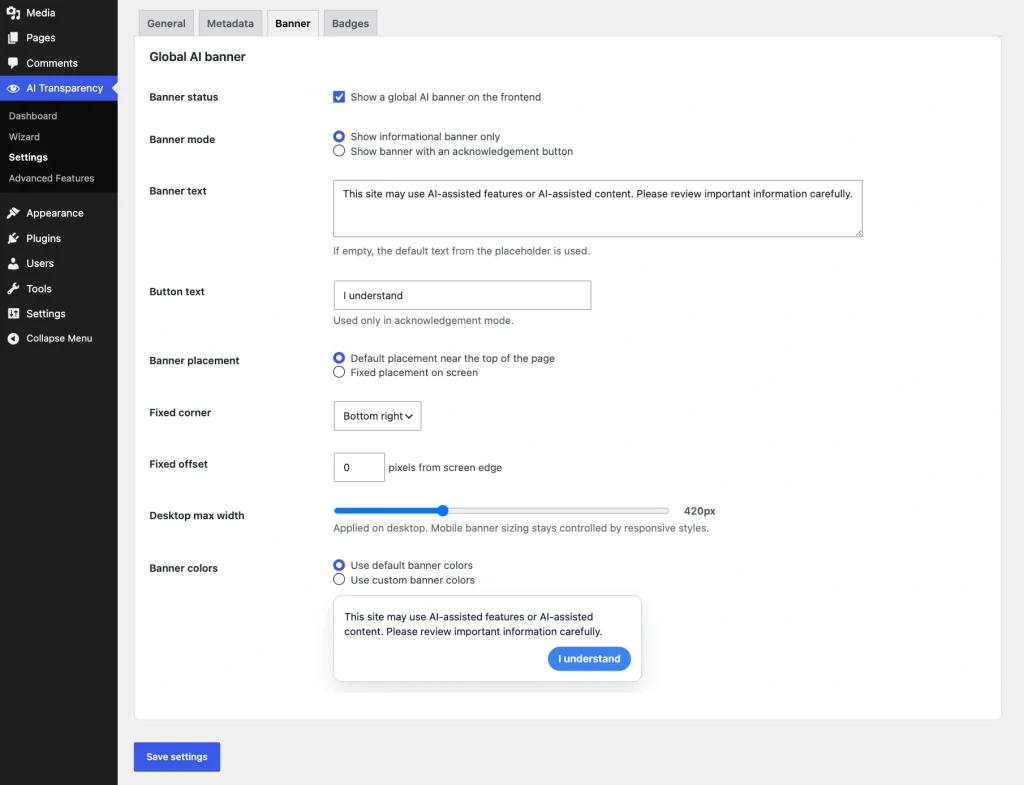
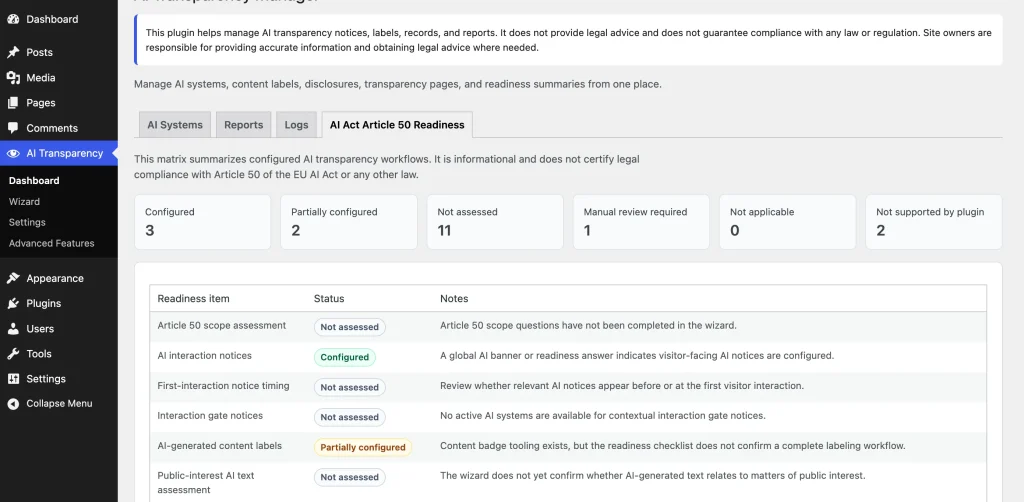
Article 50 readiness table showing unresolved rows
Expected result
AIVOW Lite is active, the first AI system is saved as Active, at least one suitable public disclosure method has been tested, the transparency page has been reviewed and published, and unresolved readiness items have been identified.
Common mistakes
- Leaving the first AI system in Draft or Inactive status and expecting public output.
- Publishing template or default wording without reviewing it for the actual site.
- Configuring several disclosure methods before testing one method completely.
- Assuming that AIVOW Lite automatically detects AI use or AI-generated content.
- Removing the transparency page shortcode and replacing it with an outdated static copy.
- Testing only in the WordPress editor instead of reviewing the public frontend.
- Treating readiness statuses or metadata as legal certification.
- Testing with stale page, object, CDN, or browser caches.
Troubleshooting
- Confirm that AIVOW Lite is active.
- Confirm that the relevant AI system is saved as Active.
- Reopen the affected system, content item, or plugin settings and save the configuration again.
- Test the public frontend in a private browsing window rather than relying only on the editor preview.
- Clear active page, object, CDN, optimization, and browser caches.
- For disclosure or Interaction Gate output, confirm that a WordPress Shortcode block and a valid numeric system ID are used.
- For the transparency page, confirm that
[aivow_transparency_page]remains on a Published page. - Check whether the active theme, page builder, security plugin, or optimization plugin changes the expected frontend output.
- Collect exact reproduction steps, WordPress and PHP versions, the active theme, and relevant error messages before submitting a support request.