
Using the Disclosure Shortcode
Display one active AI system disclosure anywhere WordPress processes shortcodes.
Product boundary
This guide explains plugin configuration. It does not provide legal advice or certify compliance.
When to use this guide
Use this guide when you need to display the public disclosure for a specific AI system on a page, post, product, policy page, or custom landing page.
Add the disclosure shortcode
- Open AIVOW → AIVOW Dashboard → AI Systems.
- Find the AI system that you want to disclose.
- Confirm that the system has Active status. Active systems are available to system-dependent public outputs.
- Click the shortcode chip in the system row to copy the shortcode.
- Open the target page, post, product, or another content area that processes WordPress shortcodes.
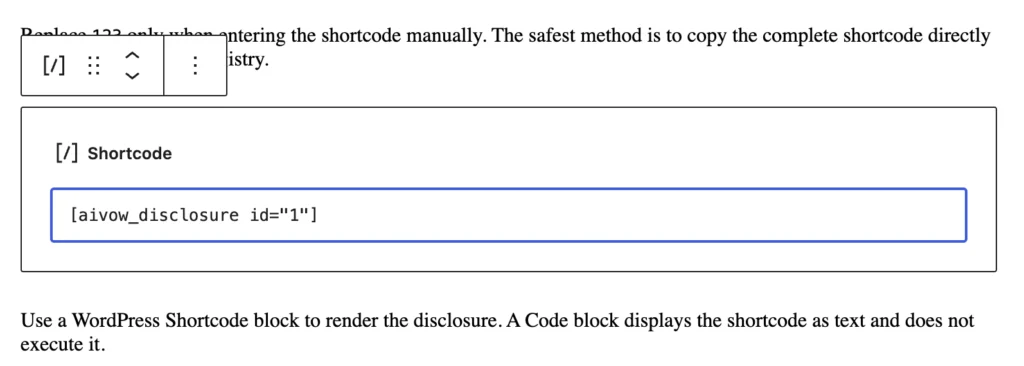
- Add a WordPress Shortcode block.
- Paste the copied shortcode into the block.
- Preview the page and confirm that the disclosure displays the expected system information.
- Publish or update the content.
[aivow_disclosure id="123"]Replace 123 only when entering the shortcode manually. The safest method is to copy the complete shortcode directly from the AI Systems Registry.
Use a WordPress Shortcode block to render the disclosure. A Code block displays the shortcode as text and does not execute it.
Understand how the output is updated
The shortcode references the AI system record by its numeric ID. It does not copy the current disclosure text into the page.
If you later update the provider, purpose, disclosure text, or other public system information in the registry, the shortcode output uses the updated record automatically.
The shortcode renders only a valid, Active AI system. Unknown, deleted, Draft, or Inactive systems do not produce public disclosure output. AIVOW Lite does not impose a quantity limit on Active systems or public outputs.
Understand the optional acknowledgement button
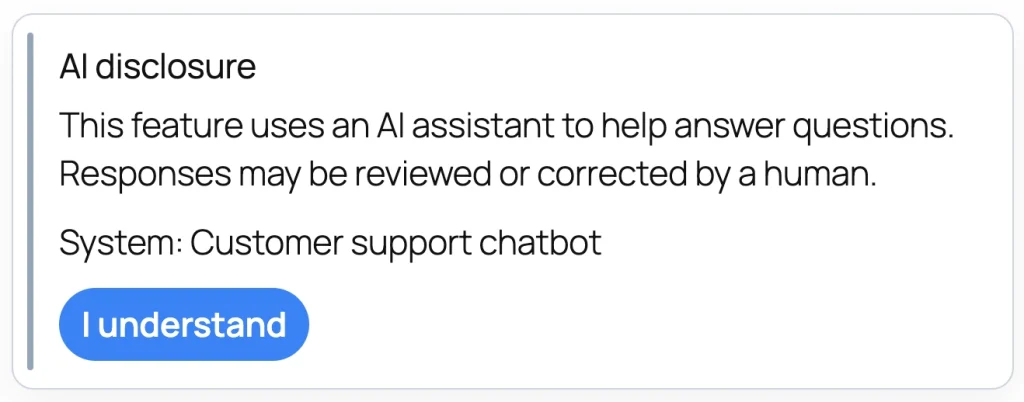
If the selected AI system is configured to require acknowledgement, the disclosure block can display an I understand button.
This button belongs to the disclosure notice. It does not hide or gate the surrounding page content. Use the Interaction Gate when selected content should be visually withheld until acknowledgement. The Interaction Gate is not authentication, authorization, a paywall, or secure protection for sensitive content.
The disclosure acknowledgement button is not a consent-management mechanism and does not prove legal consent or compliance.
AIVOW Lite does not create a server-side acknowledgement log from this action. Optional aggregated non-personal disclosure event logging is planned for AIVOW Pro but is not available in AIVOW Lite.
The following screenshots show where to copy the shortcode, how to add it in the WordPress editor, and the resulting frontend disclosure.

Expected result
The target page displays the current public disclosure for the selected AI system. Updates made to that system in the AI Systems Registry are reflected in the shortcode output without replacing the shortcode.
Common mistakes
- Typing the system ID manually and using the wrong ID.
- Using a Draft or Inactive AI system.
- Assuming that setting a system to Active automatically inserts its disclosure without adding the shortcode.
- Pasting the shortcode into a Code block instead of a Shortcode block.
- Copying typographic quotation marks instead of normal straight quotation marks.
- Confusing the disclosure acknowledgement button with the interaction gate.
- Expecting the shortcode to display inside a field or template that does not process WordPress shortcodes.
- Editing the rendered disclosure directly instead of updating the AI system record.
- Assuming the shortcode automatically detects or verifies how AI is used.
Troubleshooting
- Confirm that the shortcode follows the exact format shown in this guide.
- Copy the shortcode again from AIVOW → AIVOW Dashboard → AI Systems instead of typing it manually.
- Confirm that the system has Active status.
- Confirm that the shortcode is inside a WordPress Shortcode block rather than a Code block.
- Preview the frontend page, because the block editor may not display the final styled output.
- Check that the current theme or template renders content through the standard WordPress content filters.
- Clear any active page, CDN, or optimization caches if the frontend still shows an older disclosure.
- Test the shortcode on a simple page without unrelated shortcodes or custom template logic.
- If no output appears, try a different confirmed Active system to determine whether the issue is specific to one system record.